Thứ Sáu, 14 tháng 12, 2018

Switch Status & LED with AVR microcontroller

Generally we know about interfacing button switches, LED with Atmega32 microcontroller. We know that interface switch’s to one port, LED’s to another port and if we press any switch the corresponding LED will glow. But all the LED’s operate with single switch we don’t know.
Here we are developing the program for operating 7 LED’s with one switch. The circuit connections and programming is so simple. We will discuss here about that. First we see the circuit connections. Let us take any one port of Atemga32 controller is PortD. Connect 7 LED’s to PortD and connect on switch to remaining pin of the PortD as shown in circuit diagram.
Now let us start the coding for microcontroller. First open the Atmel Studio software of any version. Create a new project with your desired file name. Here I am taking the project name as “button switch”. In the text window type the program mentioned below and we will discuss each step clearly.
#include<avr/io.h>
#include<util/delay.h>
These are the header files for Atmega32 microcontroller main function and delay function.
void pressedbutton (int a);
void releasedbutton (int b);
This is the prototype declarations for the code blocks. These are mentioned at the beginning of the program. One is for button pressed and another is for button released. Next thing ‘a’ and ‘b’ are the two integer values. We don’t know which button is pressed, so ‘a’ stores the button pressed value and as same like ‘b’ also. We don’t know which button is released, so ‘b’ reads the released button status.


                        int pressed_level[1];
                        int released_level[1];
                        int pressed[1];
                        int lednumber[1];
This is the declaration of the global variables. The variables are represented in arrays because number represents the capacity of the array. If we want to increase the buttons the array size may change according to our requirements. For example we need to add two buttons for two ports and operating the 14 LED’s we need to replace 1 with 2. Here ‘pressed’ is the global variable to store the status of pressed button. Declaring the new variable as lednumber which can represents which LED is in on position.
            Next about main function, we will have much aware about main function right..., next port initialization. Here we are taking PORTD among form the four ports. In PORTD from pin0 to pin6 we are declaring as outputs because we are interfacing LED’s to these pins only and pin7 is declaring as input because the button is connected to this pin only.
                        DDRD = 0b01111111;
                        PORTD = 0b10000000;
The above statements represent the port initialisation ‘0b’ means representing in binary values. Instead of ‘0b01111111’ we can represent with 0X7F also. The only difference is number format ‘01111111’ represents the binary value and ‘0X7F’ represents the hexadecimal value. In data direction register ‘0’ represents the input and ‘1’ represents the output. So in PORTD 7th declared as input and ‘0 to 6th’ pin declared as outputs and by using the PORT register all the pins ‘0 to 6’ make as output low and 7th pin as input high.
                        while (1)
                        {
                        }
This is loop condition that executes the condition infinite number of times.

The remaining only one thing in main function is button condition reading. We declared input pin is high in port declarations. One end of the button is connected to pin7 and another end of the button is connected to ground. At the pin side it has high value. If button is pressed that will connected to ground and the bit is cleared. That conditions we are mentioned under while loop with ‘if-else’ condition.
                        while(1)
                        {
                                    If (bit_is_clear(PIND,7))
                                    {
                                                Pressedbutton(1);
                                    }
                                    else
                                    {
                                                releasedbutton(1);
                                    }
                        }
In before we has declared the code blocks for pressed button and released button. In the above condition when ‘if’ condition is satisfied then there is a need to execute one code block. When ‘else’ condition is satisfied then there is a need to execute another code block. The prototype declaration of code blocks already mentioned in the program beginning.

void pressedbutton (int a) 
{
                                     pressed_level[a]++;
                                      if (pressed_level[a] > 500)
                                    {
                                                 if (pressed[a] == 0)
                                                {
                                                            pressed[a] = 1;
                                                             if (a == 1)
                                                             PORTD |= 1 << lednumber[a];
                                                            lednumber[a] ++;
                                                            if (lednumber[a] > 7)
                                                            {
                                                                        PORTD = 0b10000000;
                                                                        lednumber[a] = 0;
                                                            }
                                                }
                                                 pressed_level [a] = 0;
                                     }
}
When we pressed the button, the value at the pin will become 0 and then of condition satisfied and pressedbutton code block will execute. We don’t know the button value, so pressed_level value will increment and that value is greater than 500, flow forward to next step. Here I mentioned the comparison value as 500 indicates the button pressed levels. When the pressed value is equal to zero, the pressed value becomes 1, when button pressed value is equal to 1; one LED in the PORTD and next increment the LED number according button pressed. When the led number reached the 7 then turn off the all LED’s and repeat from starting.
In the above section we discussed about pressed button code block. But in stating of the program we declared two code blocks one is for pressed button and another is for released button.

void releasedbutton (int b)   
{
                                    released_level [b] ++;
                                     if (released_level [b] > 500)
                                    {
                                                pressed [b] = 0;
                                                released_level [b] = 0;
                                    }
}
Initializing the code block then we don’t know the released level of the button. So we are taking an array for storing the released button value. First increment the released level, then compare the condition for how many times the button was released and it is compared with 500. About that value we discussed in before. If the condition satisfied, pressed value is zero and released level is also zero.


Circuit:
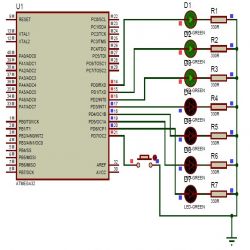
Circuit Diagram for Switch Status & LED with AVR Microcontroller
Code:
/*
 * Button_LED.c
 *
 * Created: 15-07-2013 Prince 9:06:03
 *  Author: Vinnu
 */ 
#include <avr/io.h>
#include <util/delay.h>
void pressedbutton(int a); // code block declaration for pressed button
void releasedbutton(int b); // code block declaration for released button
int pressed_level[1]; // global values initialization for pressed level
int released_level[1]; // global values initialization for released level 
int pressed[1]; // global values initialization to store which button is pressed
int lednumber[1]; // global values initialization for which led is on
int main(void)
{
DDRD = 0b01111111; // Port initialization 
PORTD = 0b10000000; //pins enabling 
    while(1)
    {
      if (bit_is_clear (PIND, 7)) // bit is clear at pin7 
 {
 pressedbutton(1); // code block will execute
 } 
 else
 {
 releasedbutton(1); // other wise this code block will execute
 }
    }
}
void pressedbutton (int a)
{
 pressed_level[a]++; // level increase one step
 if (pressed_level[a] > 500) // conditional statement
 {
 if (pressed[a] == 0) // conditional statement
 {
 pressed[a] = 1; // pressed value is equal to 1
 if (a == 1) // button pressed value is equal to 1
 PORTD |= 1 << lednumber[a]; // one led will on
 lednumber[a] ++; // led number will incremented 
 if (lednumber[a] > 7) // led number is grater than 7 repeat from starting
 {
 PORTD = 0b10000000;
 lednumber[a] = 0;
 }
 }
 pressed_level [a] = 0; // pressed level equal to zero
 }
}
void releasedbutton (int b)
{
released_level [b] ++; // release level incremented
if (released_level [b] > 500) // button pressed level comparison
{
pressed [b] = 0; // pressed button is become zero
released_level [b] = 0; // released level is zero
}
}

How to Interface a GSM (SIM 300) Modem with ATmega32 to Send and Receive SMS

What is a GSM Modem?
GSM stands for Global System for Mobile Communications.It is a standard set developed by the EuropeanTelecommunications Standards Institute (ETSI) to describe protocols for second generation (2G) digital cellular networks used by mobilephones.
A Modem is a device which modulates and demodulates signals as required to meet the communication requirements.It modulates an analog carrier signal to encode digital information, and also demodulates such a carrier signal to decode the transmitted information.
A GSM Modem is a device that modulates and demodulates the GSM signals and in this particular case 2G signals. The modem we are using is SIMCOM SIM300. It is a Tri-band GSM/GPRS Modem as it can detect and operate at three frequencies (EGSM 900 MHz, DCS 1800 MHz and PCS1900 Mhz). Default operating frequencies are EGSM 900MHz and DCS 1800MHz.


Sim300 is a widely used in many projects and hence many variants of development boards for this have been developed. These development boards are equipped with various features to make it easy to communicate with the SIM300 module. Some boards provide only TTL interface while some boards include an RS232 interface and some others include an USB interface. If your PC has a serial port(DB9) you can buy a GSM Modem that has both TTL and RS232 interfacings in economy.
Sim300 GSM module used here, consists of a TTL interface and an RS232 interface. The TTL interface allows us to directly interface with a microcontroller while the RS232 interface includes a MAX232 IC to enable communication with the PC. It also consists of a buzzer, antenna and SIM slot. Sim300 in this application is used as a DCE (Data Circuit-terminating Equipment) and PC as a DTE (Data Terminal Equipment).
Why use a GSM Modem
GSM Technology has grown so much, that literally there isn’t a place on earth where there is no GSM signal. In such a scenario GSM provides us a wide scope in controlling things remotely from any place just with our finger tips. GSM also provides ease to easily communicate in a more robust way.  
Some AT Commands
Sim300 GSM Module can be used to send and receive SMS connecting it to a PC when a SIM is inserted. The GSM Modem can be sent commands to send or receive SMS from the PC  through a com port (serial port or an usb). These commands are called as AT commands. Through AT commands we can perform several actions like sending and receiving SMS, MMS, etc. Sim300 has an RS232 interface and this can be used to communicate with the PC. Sim300 usually operates at a baudrate of 9600, with 1 stopbits, No parity, No Hardware control and 8 databits. We shall see at some of the AT Commands necessary for sending and receiving SMS.
Command
Description
AT
It is the Prefix of every command sent to the modem. It is also used to test the condition of the modem. The GSM Modem responds with an
\r\nOK\r\n    or an
\r\nERROR\r\n in case of error.
where \r is the carriage return character and \n is a new line feed character).

AT+CSMINS?
Command to check if the Modem has a sim inserted in it. It checks if the sim
Is inserted.
AT+CREG?
Command to check if the sim is registered with the network. It checks if the sim is registered and returns the status.

ATE1
Command to turn on the ECHO. The GSM Modem continnously echo's back the every byte of data sent to modem until a carriage return charater is sensed. It processes the command after a carriage return character is detected. It is usually better to turn off echo to reduce traffic. In this case ECHO is turned on to see how commands are sent and how they are processed.

AT+CMGF=1
Command to set the communication to TextMode. By default the communication is in the PDU mode.

AT+CMGR=1
Command to read an SMS at the index one.Generally the index depends upon the how many number of SMS that a sim can store. SIM Memory is the only memory available when GSM Modem is used and hence the number of SMS's stored depends on the SIM. It is usually 20. Any message received is arranged in the order of arrival at specific indices.
AT+CMGD=1
Command to delete the SMS at the index 1.

AT+CMGS
Command to send SMS from the GSM Modem.

                       
Some other commands may be device specific and may or might not operate on all the modems. It is better
to use the AT Commands specified for the Modem used.

Using the GSM Modem
We shall first try to communicate with the Modem using PC(Hyperterminal).
1.Setting up a new connection in Hyperterminal
Hyperterminal Window
2.Port selection:
Port Selection in Hyperterminal
Select the COMPORT to which your modem is connected. If you are using a DB9 connector it is COM1 and if you are using a usb connector then it will be shown up in the dropdown menu.

 Using UART of ATMega 32

3.COM Properties
Set the com properties as shown in the figure and press OK button.
COM Properties
4.Sending commands to the modem
Hyperterminal communcation
Now Power on the GSM Modem and wait for Call Ready to appear on the terminal.Type AT and then press Enter button.You’ll see OK on the Hyperterminal. Similarly try out the other commands.
Hyperterminal

Using the UART of Atmega32 Microcontroller to communicate with the Modem
Atmega32 has three types of serial communication peripherals and they are
1.      USART (Universal Synchronous/Asynchronous Rececive and Transmit)
2.     TWI (Two-Wire serial Interface) and
3.     SPI (Serial Perpheral Interface)
Atmega32 has an USART(Universal Synchronous and Asynchronous Receive and Transmit) peripheral which enables us to perform serial communication either synchronously or asynchronously. Here asynchronous mode is preferred at a normal speed. The Pins Rx and Tx of the GSM Modem are connected to the Tx and Rx pins of Microcontroller. USART of the Microcontroller is configured to work at the baudrate of 9600, with 8 Databits, 1 stopbit and Parity None.
SIM300 to Microcontroller Interfacing
Atmega32 serial communication is very much like that of serial communciation in an Atmega16 except a few changes. The interrupt vector table for the Atmega16 and Atmega32 are different, any how since no interrupt is used in the serial communcation the same code is applicable even in here.
Using Watchdog Timer to prevent infinite loops
A watchdogtimer is used to prevent the microcontroller from falling in to infinite loops. A watchdogtimer when set, counts down the specified and when the timer expires it resets the microcontroller. In Atmega32A a watchdog timer with a maximum time of 2 seconds is available.
While reading the data from GSM Modem via UART some times it is possible that we may not receive the expected bytes from the Modem. In such a case the the microcontroller keeps waiting for those expected bytes and keeps on waiting thus falling in to an infinite loop. To prevent such a condition a watchdogtimer is set with a time of 2 seconds(approximately). If expected bytes are received from the GSM Modem then immediately the timer is reset and the watchdogtimer is disabled. if the expected bytes are not received from the Modem then the timer expires and a reset occurs.
Algorithm
            The GSM Modem is constantly checked for any new messages to respond and hence it follows the following algorithm.
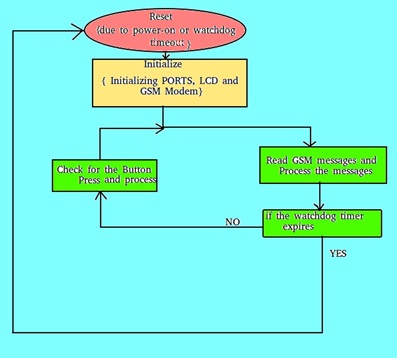
Initialising the GSM Modem
1.      Send AT command and wait for the response.if the response is correct then goto step 2,else the watchdogtimer causes a reset.
2.      Send command to check if the sim is inserted in to the modem.if the response is correct then goto step 3,else the watchdog timer expires and causes a reset.
3.      Send command to check if the sim is registered to the network.if the response is correct then goto next step,else the watchdog timer expires and causes a reset.
4.      Send command to turnon the echo and wait for the response.
5.      Send command to communicate in the textmode and wait for the response.
6.      Now start reading the messages.
Reading the SMS
i)        Send command to read the SMS at index 1.
ii)      Read the response
(a)    If the response is OK then go to step 3
(b)   Else if the response is “+CMGR” then start reading the number and the message.
1.      If number is the registered number then process the message.
2.      Else discard the message.
3.     Delete the message at index 1.
iii)    Wait for about 1000ms for the modem to rest
Overall Process
How to Interface a GSM(sim 300) Modem with Atmega32 to Send and Receive SMS
Hardware used
1.     Atmega32
2.     LCD and
3.      SIM300 GSM Modem
Softwares Used
1.     Win AVR : Program compiler for AVR series of microcontrollers.
2.      PonyProg : Lanconelli designed third-party programmer software for programming the microcontrollers.
3.    HyperTerminal : Windows-Based port based communication software.


Circuit:

Circuit Diagram for How to Interface a GSM(SIM 300) Modem with Atmega32 to Send

Bài đăng mới nhất

Hướng dẫn sử dụng Cân điện tử Fujihatsu FTC-01

Hướng dẫn sử dụng Cân điện tử Fujihatsu FTC-01 # candientu ,  # fujihatsu ,  # candientufujihatsu  #candientu,  # candientufujhatsu , #fuji...

Bài đăng phổ biến